
Take the order
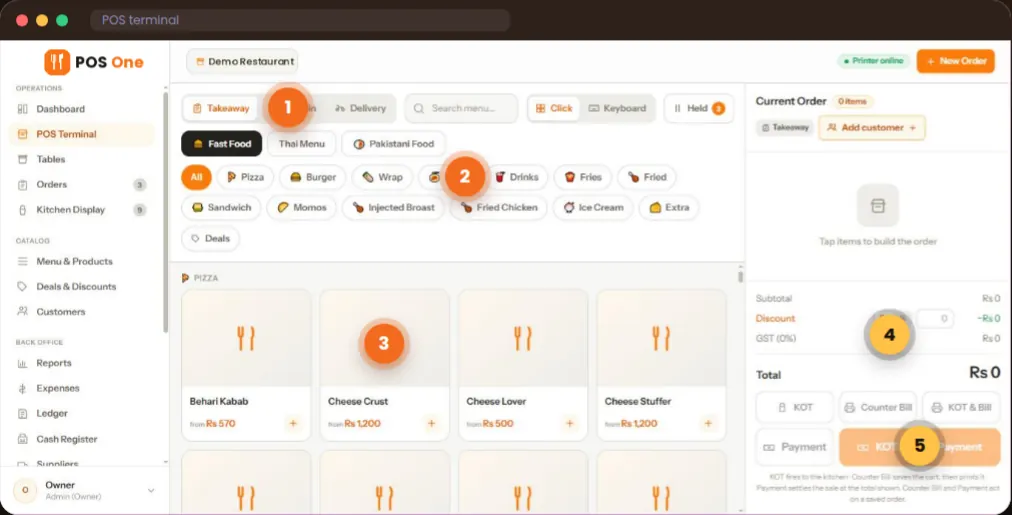
A waiter selects a table on the floor plan, or a cashier starts a takeaway or delivery order. Menu categories help staff find an item and add its size or extras before sending it on.
Take dine-in, takeaway and delivery orders in one web app. Keep table status visible, send tickets to the kitchen and review what happened after the shift.
See the actual Restaurant POS One screens below. Available on desktop, tablet and phone through a web browser.
A restaurant point of sale system should make it easy to follow a guest’s order across the room. Here is the flow Restaurant POS One is designed to manage.
A waiter selects a table on the floor plan, or a cashier starts a takeaway or delivery order. Menu categories help staff find an item and add its size or extras before sending it on.
Print a kitchen order ticket or send the order to a station display. Kitchen staff can move a ticket from new to cooking and ready, while front of house can check the live order book.
Apply a discount or tax where appropriate, produce the bill and record payment. Managers can review orders, the cash register, expenses and sales reports after service.
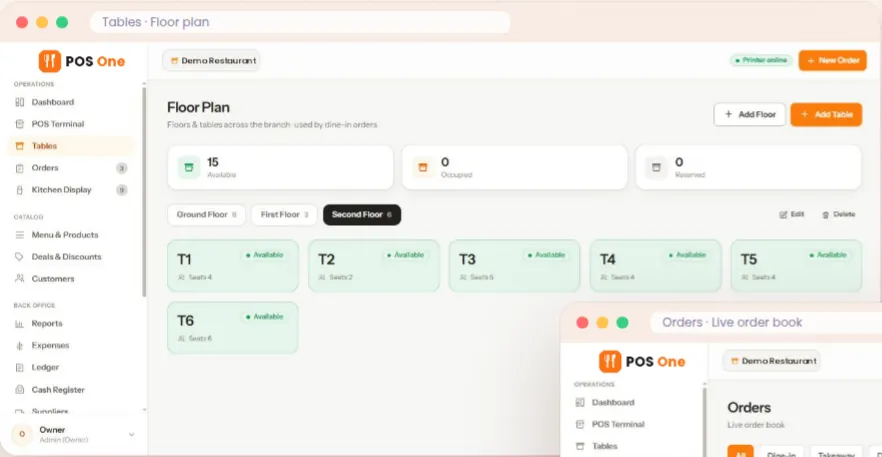
Set up floors, tables and seat counts, then see whether each table is available, occupied or reserved. The order book keeps dine-in, takeaway and delivery work in one view, with filters for orders that still need attention.
This is useful when the same team is serving seated guests while handling counter and delivery orders. Staff can move between those jobs without maintaining separate lists.
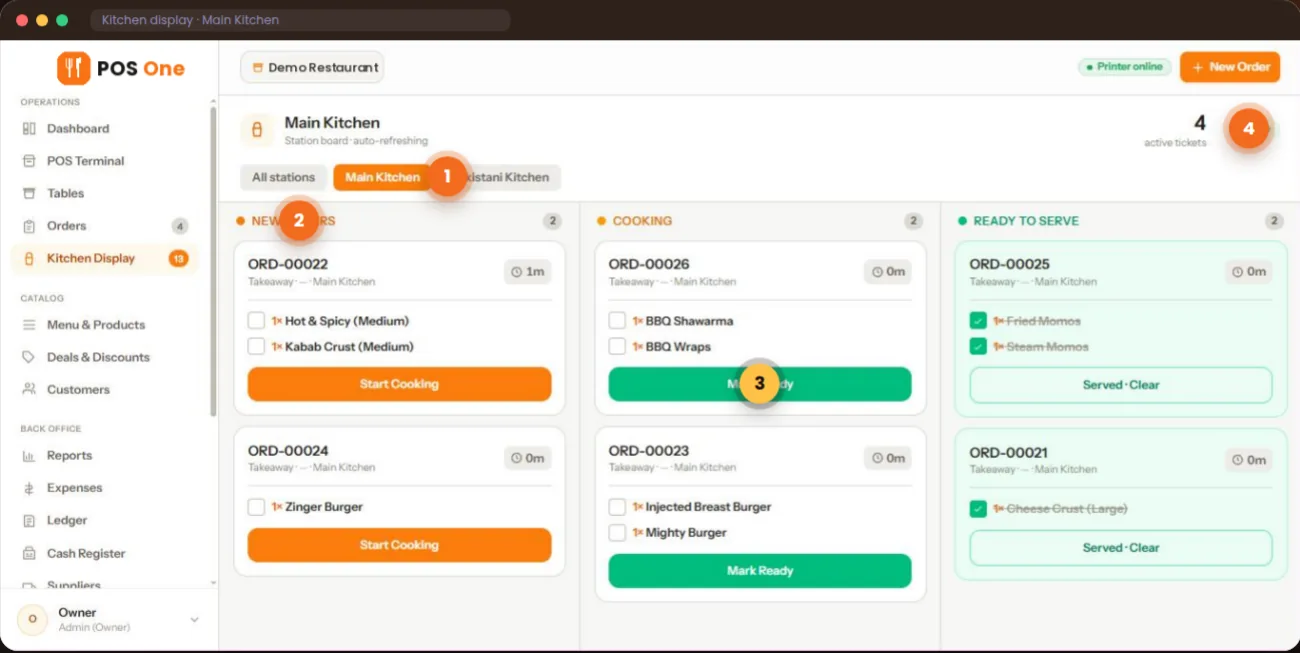
The kitchen display shows incoming tickets and the items to prepare. Cooks can mark work as it moves through preparation, while the active ticket count gives the team a view of what is still open.
Restaurant POS One’s product overview shows separate kitchen stations and ticket status changes. During a demo, use one of your own menu items to see how a modification appears on the ticket and which station receives it.
Ask to see your kitchen workflow →Create categories and combo deals, with prices shown at the counter. Staff can select item options while building an order.
Keep records for inventory, units, recipes, purchases and suppliers; the overview also lists a production module. It shows stock being updated after orders. Ask for a walkthrough of your specific ingredient, production and adjustment rules.
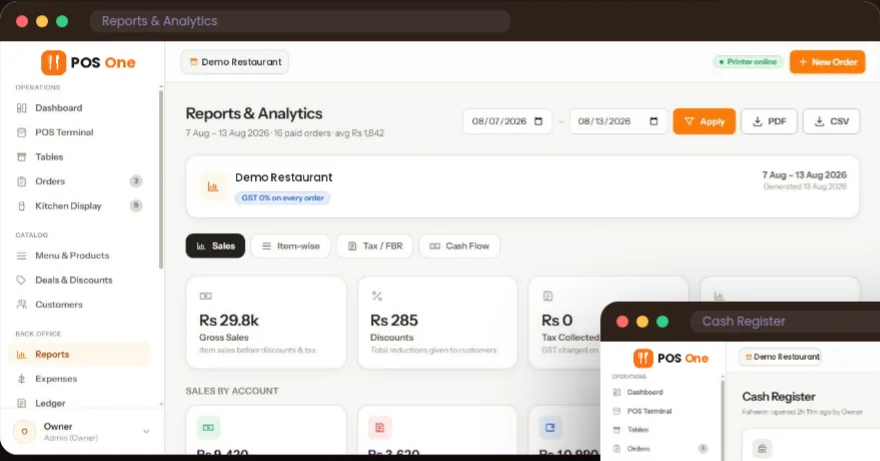
Review sales, item results, tax and cash flow for a selected date range, with PDF and CSV exports. The cash register records opening float, cash in and out, and expected drawer cash. Expenses and the ledger track customer and supplier balances.
Eight roles are listed: admin, manager, cashier, waiter, rider, kitchen, HR and accountant. Shared devices use staff profiles and four-digit PINs; a permissions matrix controls access by module.
Keep delivery orders visible alongside dine-in and takeaway. The live order book can filter online or unpaid orders, and assigned riders can see their own deliveries and update status. Confirm any external delivery integration separately.
Use Restaurant POS One on desktop, tablet or phone. The overview lists cash, card, JazzCash, Easypaisa and customer credit in its payment records, and mentions role-based user guides. Confirm actual payment processing, printers and regional support before choosing hardware.
Bring your menu, an example order and the devices you use today to the demo. A product walkthrough is more useful when you can test the parts of a shift that cause the most friction.
Restaurant POS One records cash, card and wallet payments in its example interface. Confirm actual payment processing and integrations separately.
Its supplied product overview covers order entry and billing, tables, kitchen tickets and displays, menu deals, inventory and suppliers, a cash register, reports and staff permissions. The demo is the place to check which parts fit your service model.
Yes. Those are the three order types shown in the Restaurant POS One interface. Confirm any requirements for external delivery platforms separately; the overview does not establish those integrations.
The product is presented as a responsive web app. The supplied overview does not specify included terminals, printers or payment devices. Ask for a written list of compatible hardware and its cost before purchase.
Offline operation is not confirmed in the supplied product information. Ask the team for a live explanation of connectivity requirements and what happens during an outage.
See Restaurant POS One pricing for the displayed starting figure. If it is marked illustrative, ask for an approved quote covering setup, support and any hardware or payment costs.
Request a walkthrough of tables, modifications, kitchen tickets, billing and end-of-shift reports.