
Find the item quickly
Choose a menu and category, then add the selected food or drink to the cart. Restaurant POS One’s order screen groups categories and deals, so staff can reach the items they sell most often.
Enter counter or table orders, add sizes and extras, send preparation tickets and review sales in one web app. Restaurant POS One gives café staff a clear path from the first order to the close of a shift.
For cafés using counter service, table service or both. See how your own menu would work.
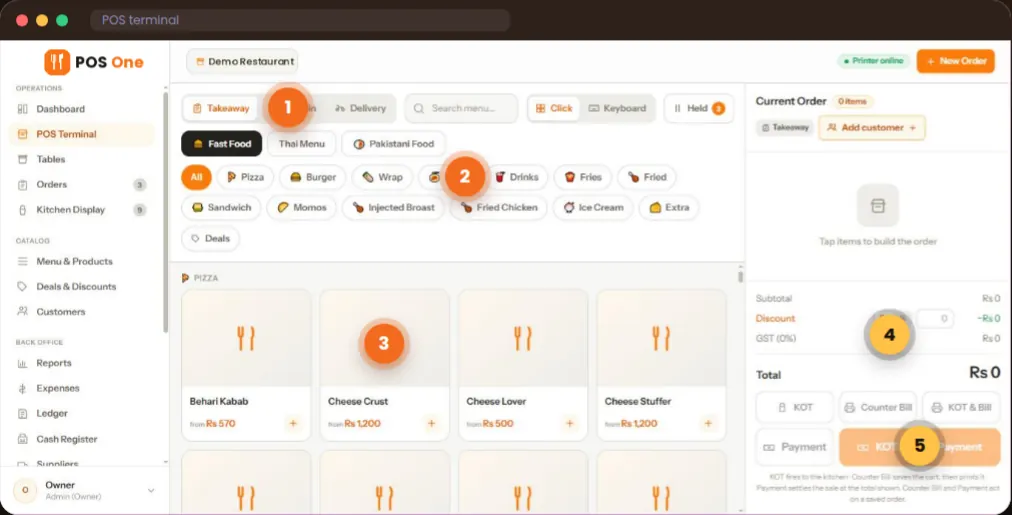
Imagine the morning queue: two drinks in different sizes, a food item and an extra on one order. The important question is whether the team can enter it accurately while the line keeps moving.
Choose a menu and category, then add the selected food or drink to the cart. Restaurant POS One’s order screen groups categories and deals, so staff can reach the items they sell most often.
Select available sizes and add-ons on the item rather than leaving a vague note. Check the cart total, apply a discount if needed and add the customer to the order where relevant.
Print a kitchen order ticket or route the order to a kitchen station display. Staff there can see what is new, what is being made and what is ready.
A café POS should handle the small decisions that make a queue slow: a different size, an extra ingredient, a deal and a takeaway order. Restaurant POS One’s terminal shows menu filters, sizes, add-ons, live totals and one-click actions for a kitchen ticket, counter bill or payment record.
Held orders and keyboard mode are also shown in the product brief. If you run a café with table service, the same platform includes floors and table statuses; ask to see the handoff between counter and table orders.
See the restaurant table workflow →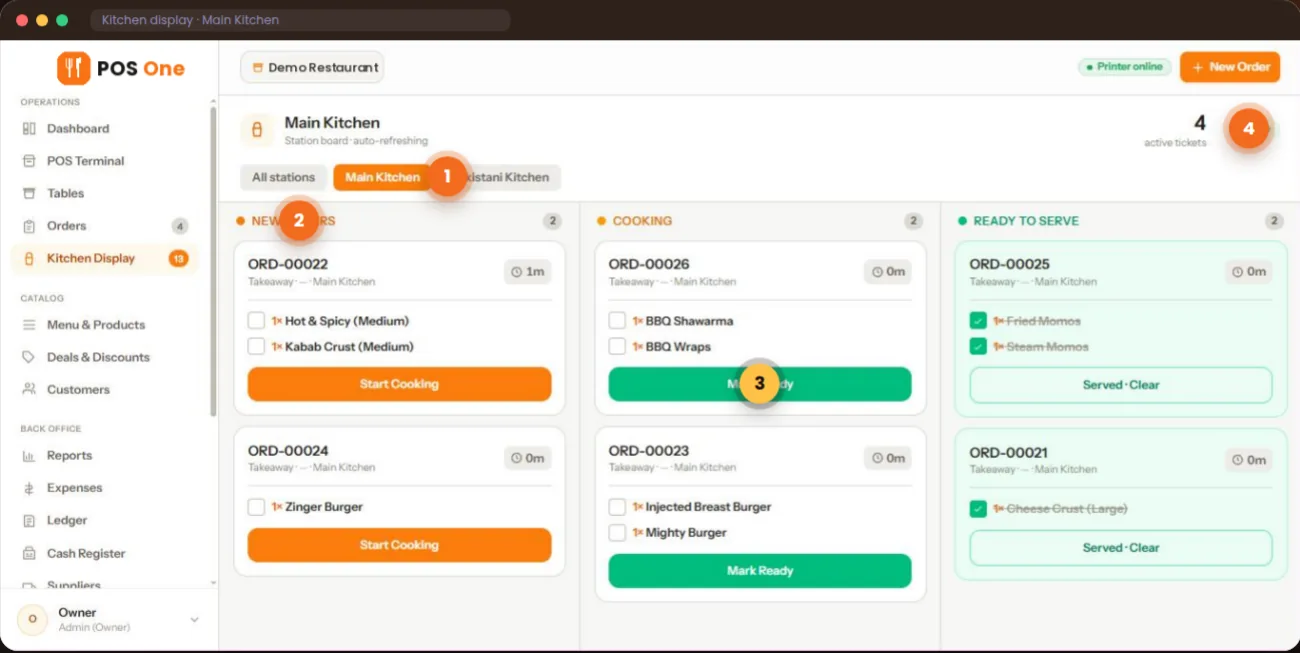
Restaurant POS One’s kitchen view groups tickets by status and station. Cooks can mark items through preparation, and front-of-house staff can check which orders are still open. This matters when a café is making drinks and hot food while taking fresh orders.
Use a real scenario in the demo: order a drink with an add-on, add food, then check how each item appears at the relevant station. Confirm the kitchen setup you need before committing.
Group items by menu and category. Set up combo deals with their own prices and show active offers at the counter.
Restaurant POS One includes inventory, recipes, purchases and supplier records. Have the team demonstrate how a product sale affects the specific ingredients you track.
Review sales, item results, discounts and cash movements. Export available reports as PDF or CSV for a closer look.
Look beyond a tidy checkout screen. Try the sequence your team repeats dozens of times and ask to see the end-of-day result.
Confirm internet requirements, compatible printers, payment setup, training and total ownership costs. The supplied product overview does not establish a native iPad app, offline mode, loyalty programme or online ordering integration.
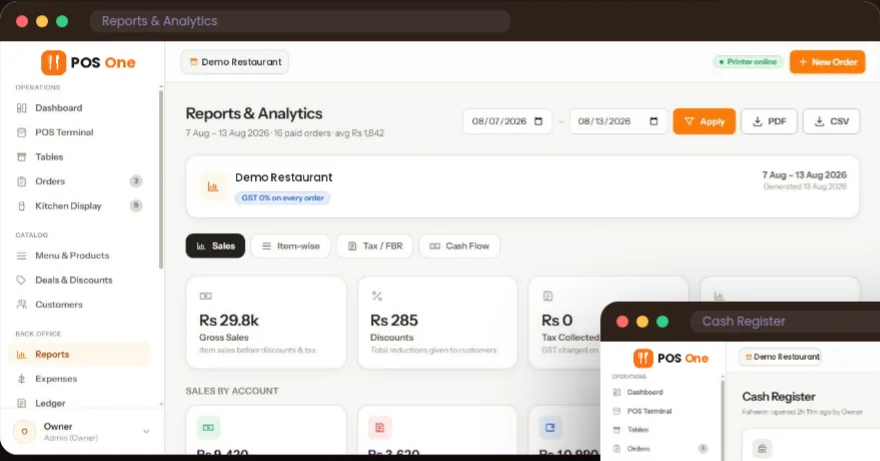
A café point of sale system records customer orders and payments, then connects those orders to preparation and business reporting. Restaurant POS One’s café workflow includes menu options, counter bills, kitchen tickets, inventory records and shift reports.
It supports counter orders, takeaway and table service in a browser-based system. A small café should test its actual menu, devices, printer and payment workflow during the demo to decide whether the setup fits.
Restaurant POS One is described as a responsive web app for tablets, phones and desktops. The overview does not specify an iPad app or a list of supported peripherals; ask the team to validate your exact devices.
The product includes inventory, units, recipes, purchases and suppliers. Ask for a live example of how a sale changes your ingredient quantities, including substitutions, waste and manual corrections.
Review Restaurant POS One pricing and request a written quote that covers software, setup, compatible hardware, support and payment arrangements. Any figure marked illustrative is not a final offer.
See item options, a kitchen ticket, a bill and a shift report in one walkthrough.