
← All guides
How to Choose a Restaurant POS System: A Practical Buyer’s Guide
Compare restaurant POS systems with a practical checklist for orders, tables, kitchen tickets, payments, inventory, hardware and total costs.
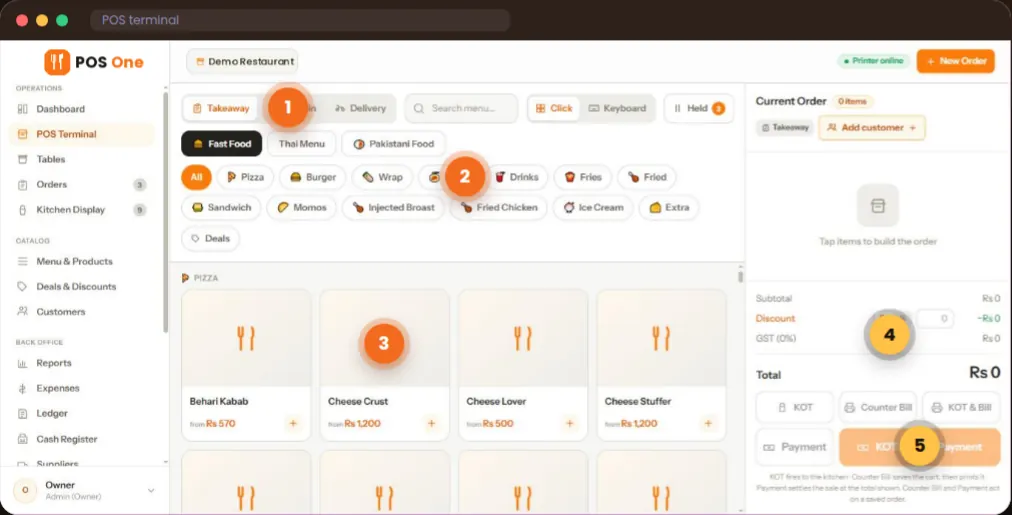
A good restaurant POS system should let your team take an order, send clear instructions to the kitchen, produce the correct bill and review the shift afterwards. Choose one by testing that entire sequence with your own menu. The checkout screen alone will not tell you whether a system fits your service.
This guide gives you a practical way to compare restaurant POS software, whether you run a small dining room, a busy takeaway counter or a mix of both. It also shows the questions to ask about hardware, payments, connectivity and cost before you sign.
A low advertised fee may omit equipment or support your restaurant needs. Equally, a larger bundle may include tools you will never use. Compare the total setup and the ongoing amount for the same workflow.
Start with the way you serve customers
Write down what happens from the moment someone orders until you close the shift. Include the awkward cases, because those reveal more than a perfect demo order. For a table-service restaurant, test a party that changes its order, moves tables and asks for a bill after some dishes have reached the kitchen. For a takeaway business, test a queue of orders with sizes, extras and a delayed pickup. If you offer delivery, check how an order appears in the kitchen, who handles it after preparation and how staff find its current status. A restaurant point of sale system should fit the work your team does most often. Make a short list of essential tasks before looking at feature lists. A café or bakery may need a different sequence; our café POS system and bakery POS software pages show those counter-service questions separately.Test one real order from start to finish
Ask every vendor to run the same order. Bring your menu and a few changes you know customers request. This keeps the comparison practical.- Enter the order. Find an item, add a size or extra, and switch between dine-in and takeaway if your business offers both.
- Check the table. For table service, find an available table, attach the order and confirm how staff see its current status.
- Send it to preparation. Look at the printed kitchen order ticket or kitchen display. Check that item changes and preparation notes reach the right place.
- Change something. Remove or replace an item. Ask how the kitchen learns about the change and what the final bill shows.
- Close the bill. Apply the tax or discount rules you actually use, record a payment and inspect the receipt.
- Close the shift. Review orders, sales, cash movements and an item report. Ask what can be exported for your records.
Which restaurant POS features matter most?
The useful features depend on your service model. Assess each one against a specific task rather than a long list of icons.Orders, tables and kitchen communication
Look for clear menu categories, item options and a way to see open orders. A dining room also needs a floor plan or table view that staff can understand at a glance. The kitchen must receive an accurate ticket and know when an order is new, being prepared or ready. Ask whether different preparation stations can receive the right items; have the vendor demonstrate your particular setup.Billing, staff access and daily records
Check how the POS handles discounts, taxes, bills and cash drawer activity. Staff roles should give a waiter, cashier, kitchen user and manager the access they need without showing everyone the same controls. Ask to see what happens when a shared device changes hands during service. For owners, the reporting screen should answer basic questions: What sold today? Which orders remain open? What cash should be in the drawer? Which expenses were recorded? Confirm how totals are calculated and whether you can export reports.Menus, inventory and purchasing
If you track ingredients, ask for a demonstration using one menu item and its recipe. Follow the purchase of ingredients, the sale of the item and any stock adjustment. Check how substitutions, waste and corrections are recorded. Do not assume that every POS deducts ingredients in exactly the way your kitchen operates.Compare the full cost, not just the monthly fee
Before deciding, ask for a written quote with these items separated:| Cost to check | Question to ask |
|---|---|
| Software | Is the price per location, device or user? Which modules are included? |
| Hardware | Which terminals, tablets, printers and network equipment do we need? Can existing devices be used? |
| Setup and training | Is menu entry, configuration or staff training charged separately? |
| Payments | Is payment processing included? What transaction fees or provider requirements apply? |
| Support | Which hours, channels and response terms are included? |
| Changes or cancellation | What happens to our data and costs if we add a location or leave? |
Check hardware, payments and internet requirements
Recording a card payment in a POS is different from processing that card. Ask which payment devices and processors work with the system in your country, whether transactions sync automatically and what happens when a payment fails. If you use local wallets, request a live demonstration with your actual provider. Test the receipt printer and kitchen printer with your own order. Confirm supported operating systems, screen sizes and the network required at the counter and in the kitchen. If you plan to use a tablet, ask whether it runs in a browser or a dedicated app and which peripherals have been tested. Finally, ask exactly what works when the internet is unavailable. Can staff still create orders? Will kitchen tickets print? Can a payment be taken and later reconciled? Get a written answer and, where possible, see an outage test. Do not assume that a web-based POS includes offline operation.A practical demo checklist
Take these questions to your shortlist of vendors:- Can a new cashier complete our most common order without help?
- Can we add a modifier, change a quantity and send the revised ticket to the correct station?
- Can staff find a table, open order and unpaid bill quickly?
- What does the kitchen see when an item is changed after the first ticket?
- Can a manager reconcile opening cash, cash in and out, and expected drawer cash?
- Which reports are included, and can we export the figures we need?
- How do recipes, purchases and manual stock adjustments work in practice?
- Which hardware and payment providers are confirmed for our location?
- What happens during an internet outage?
- What is the complete price for our locations, devices, setup and support?
How Restaurant POS One Helps You Serve Your Customers
Restaurant POS One’s supplied product overview shows dine-in, takeaway and delivery order types; menu categories and item options; a table floor plan; kitchen order tickets and a kitchen display with order statuses; billing and cash-register records; inventory, recipes and suppliers; staff roles; and sales reports with exports. You can see these workflows on the restaurant POS software page. Those screens give you a useful starting point for a product demonstration. Before buying, confirm your exact hardware, payment processing, connectivity, setup, support and approved price with the team. The product overview does not establish a native iPad app, offline mode or third-party delivery integration.Frequently asked questions
What should a small restaurant prioritise in a POS system?
Start with quick order entry, accurate kitchen tickets, a clear bill and a shift report your manager can reconcile. Add table management if you seat guests. Check the complete cost and the support available in your location before paying for optional modules.Is a restaurant POS the same as a cash register?
A cash register primarily records sales and handles checkout. A restaurant POS can also connect orders to tables, preparation, staff permissions, inventory records and reports. The exact features depend on the product and plan, so ask to see your full workflow.Can restaurant POS software run on a tablet?
Some systems can, but tablet support does not confirm that your printer, payment device or offline workflow will work. Test the complete setup on the tablet model you intend to use.How long does it take to change POS systems?
It depends on your menu, devices, locations, payment setup and staff training. Ask the vendor for a written implementation plan and test orders before switching the whole team. Do not rely on a generic setup estimate.Make the decision with your own service in mind
The best choice is the system your team can use reliably for its actual orders and close-of-day work, at a total cost you understand. Shortlist vendors with your requirements, run the same test order in each demo and record the unanswered questions. If you want to see the Restaurant POS One workflow, book a product demo and bring a typical order, a difficult modification and the devices you plan to use.Next step
See how your own orders would work.
Bring an example order, the changes customers request and the devices you plan to use.
Book a product demo →